 Pocket Piggy
Why an always-visible board helps
The chore chart that works is the one everyone actually sees. A list on a phone is easy to forget, and paper on the fridge gets buried under school notes. When the week's chores are on a screen in the room where the family already gathers, nobody has to go looking for them.
It changes the conversation too. Instead of "did you do your chores?" you can point at the screen. Kids see their own progress, what's left, and that their brother or sister has chores as well, which heads off a lot of "it's not fair".
No wall display to buy
Dedicated wall displays for family chores and calendars are another device to buy, find wall space for, and keep plugged in. If you already have an Apple TV, Pocket Piggy uses the screen you have. The Apple TV app is free, even with one kid, and you don't need the Family Unlock for it.
What the board shows
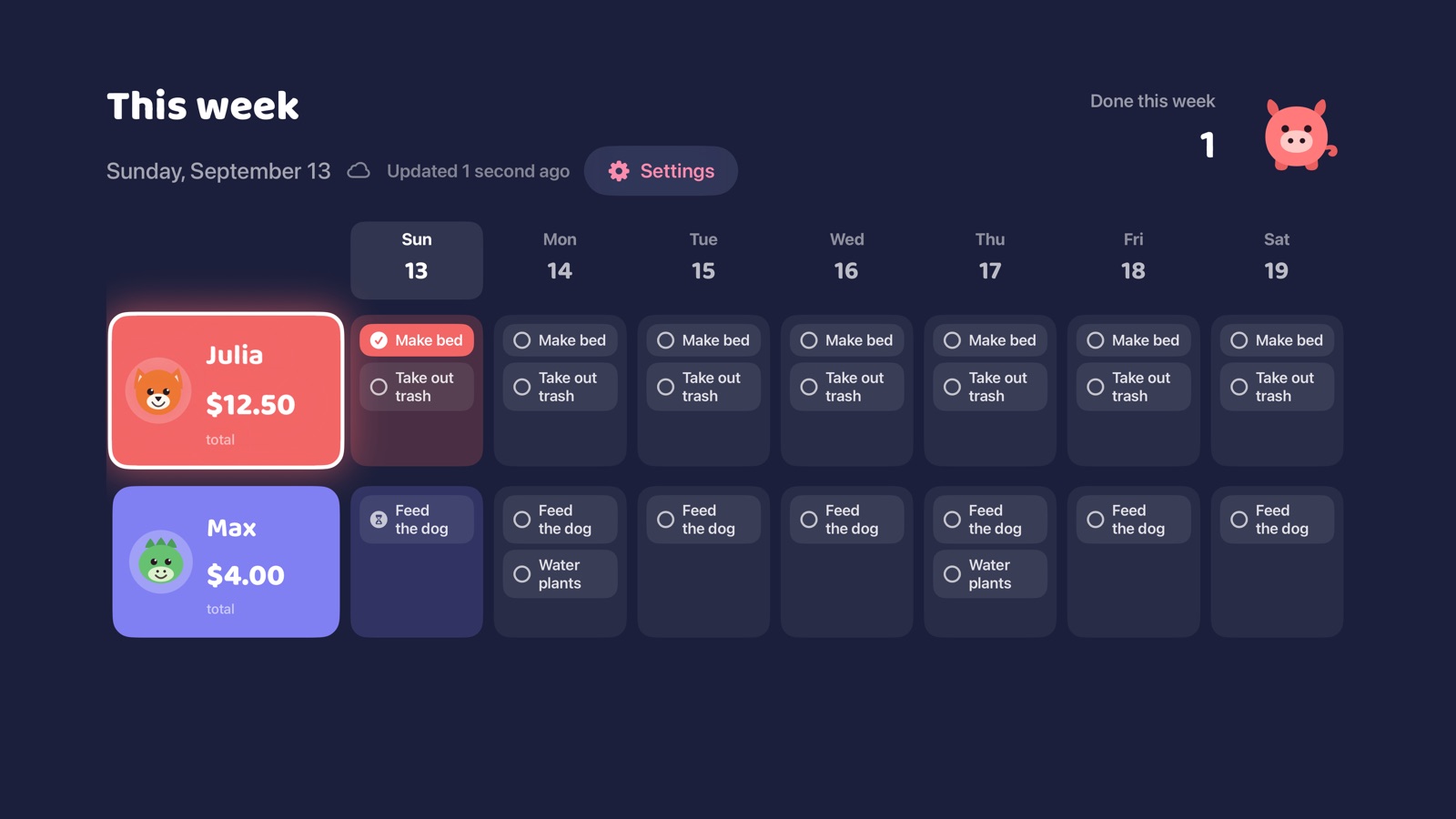
The TV shows the whole week at once: one row for each person, one column for each day, and each day's chores in that square. Every chore shows whether it's done, waiting for a grown-up to approve, late, or still to do. Chores that take turns appear for whoever's turn it is that week or month.
- Each kid's total balance, next to their name.
- A countdown to Pay Day, if anyone in the family is paid weekly.
- A celebration on the TV when Pay Day lands, when a kid reaches a savings goal, and when a kid gives money away.
With the Siri Remote you can open any kid's screen to see their Spend, Save and Give money, their goal progress and their week.
For looking, not tapping
The TV board is view-only. Nobody can check off, change or approve chores from the couch. Kids check off chores in Kid Mode on an iPhone or iPad, a parent approves them there, and the TV updates to match.
Try it before you set anything up
The first screen of the Apple TV app has an Explore a sample family button. It shows a pretend family with a week of chores, money in every jar and savings goals, clearly labelled "Sample family". It needs no phone, no pairing and no account, and nothing is saved. Leave it whenever you like.
How to set it up
- Set up your family and chores in Pocket Piggy on your iPhone or iPad. Everything is created there first.
- Download Pocket Piggy on your Apple TV from the App Store.
- Make sure the Apple TV is signed in to the same Apple Account as that iPhone or iPad. That is what carries your family's board to the TV.
- On the TV, choose Connect this TV. On the phone, open Pocket Piggy, go to Settings, then Apple TV, and enter the six-digit code shown there.
One thing to check first: the TV can only show a family from the Apple Account it is signed in to. If your Apple TV uses a different Apple Account from the phone you set Pocket Piggy up on, the board will stay empty.
Still like paper too?
Some families like a copy on the fridge as well as the screen. Pocket Piggy can print a monthly family chore sheet or a weekly tick sheet for each person, handy for the kids' rooms or a grandparent's house. There are also free printable chore charts on this site.
More than a TV app
The Apple TV board is one part of Pocket Piggy. On iPhone and iPad, parents approve chores, set up rotations and manage allowance, while kids use Kid Mode, locked with your PIN, with read-aloud buttons for kids who aren't reading yet. Home Screen widgets show today's chores. Read more about the chore chart.
What it costs
Pocket Piggy is free with one kid on iPhone, iPad and Apple TV. A one-time $9.99 Family Unlock covers more kids and sharing the family with another grown-up on their own Apple Account. No subscription, at any tier. Pricing, explained.